



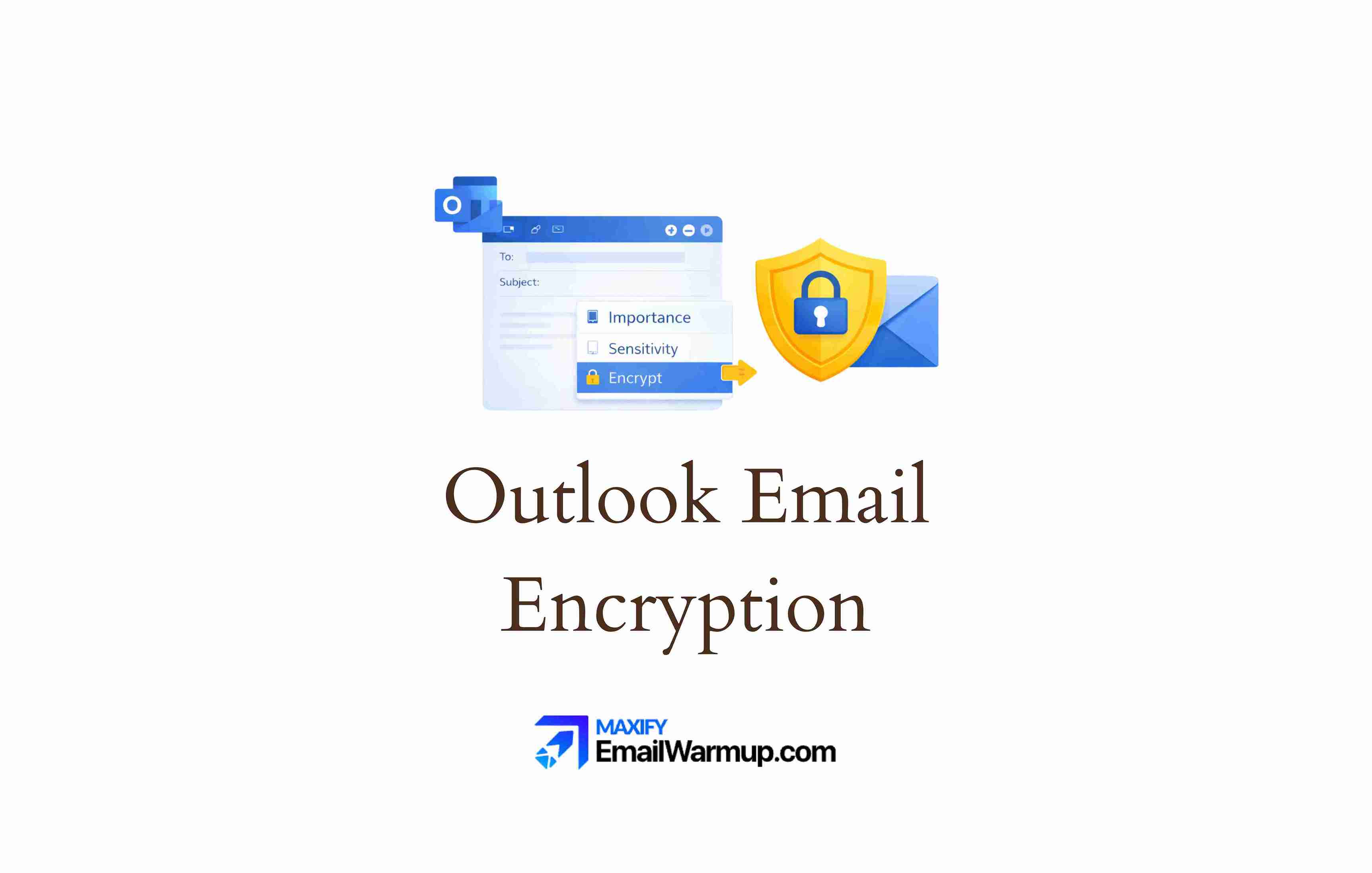
Emails weren’t designed to be secure. Without encryption, anyone intercepting network traffic can read your message contents — credit card numbers, contracts, personal information, all visible in plain text.
Outlook offers two encryption methods:
- Microsoft Purview Message Encryption (built into M365 subscriptions)
- S/MIME (certificate-based, requires manual setup)
Both convert readable text into cipher text that only the intended recipient can decode. The encryption persists through replies and forwards — once applied, it can’t be removed by anyone.
The catch is that encryption features require specific licenses. E3, Business Premium, and M365 Family/Personal subscriptions include the Encrypt button. Lower-tier plans like Business Standard don’t.
What encryption options does Outlook offer?
Outlook provides two distinct approaches to securing email, each with different requirements and recipient experiences.
| Feature | Microsoft Purview (IRM) | S/MIME |
| How it works | Cloud-based, portal access | Certificate-based, local decryption |
| Recipient requirements | Authentication via portal or passcode | Must possess a private key |
| License requirement | E3, Business Premium, or M365 Family/Personal | No license needed (certificate required) |
| External recipient experience | Secure portal with sign-in or OTP | Must possess private key |
| Setup complexity | Minimal (if licensed) | Requires certificate procurement |
| Best for | External recipients without certificates | Organizations with PKI infrastructure |
Most users will use Microsoft Purview encryption since it requires no certificate management. S/MIME is primarily for organizations with existing public key infrastructure.
Purview options
When you click Encrypt in Outlook, you’ll see several permission levels:
| Option | What it does | Recipient restrictions |
| Encrypt-Only | Converts the message to cipher text | None — can forward, print, copy |
| Do Not Forward | Encrypts with usage controls | Cannot forward, print, or copy |
| Confidential | Restricts to internal organization | Only org members can view/edit |
| Confidential View Only | Internal view-only access | Can view internally, cannot edit |
Do Not Forward
The Do Not Forward option deserves special attention for highly sensitive content:
- Print option disabled
- Copy/paste blocked
- The forward button is grayed out
- Office attachments (Word, Excel, PowerPoint) remain encrypted even after download
Recipients can view and reply — nothing else. The restrictions are enforced by the portal and checked every time someone opens the message.
What do you need before encrypting?
Encryption requires both the right license and the right Outlook version.
License requirements
The license requires you to have:
| License tier | Purview encryption available? | Notes |
| Microsoft 365 E3/E5 | Yes | Full access to all options |
| Business Premium | Yes | Good option for SMBs |
| Business Standard | No | Must upgrade or use S/MIME |
| Business Basic | No | No encryption options |
| M365 Family/Personal | Yes | Encrypt and Do Not Forward available |
The cost jump frustrates many small businesses. Business Standard runs about $72/year per user, while Business Premium (which includes encryption) costs $264/year per user. Some organizations use S/MIME to avoid the license upgrade — though certificate management adds its own complexity.
Version requirements
The version requires you to have:
| Platform | Minimum requirement |
| Outlook Windows | Version 16.0.11126.20188 (December 2018) or newer |
| Outlook Mac | Requires M365 subscription license (not volume license) |
| Outlook on the web | Any modern browser |
| Outlook mobile | iOS and Android apps support reading encrypted messages |
Mac users on volume licenses won’t see the Encrypt button at all. The solution is to sign in with an M365 subscription account instead.
How do you encrypt an email in Outlook for Windows?
The desktop process takes about five seconds once you know where to look.
- Compose a new email message
- Click the “Options” tab in the ribbon
- Click the “Encrypt” button
- Select encryption type (Encrypt-Only or Do Not Forward)
- Complete your message and click Send
A small lock icon appears in the message header after encryption is applied — confirmation that the message will be protected.
Subject line method
Some organizations configure automatic encryption when [secure] appears in the subject line (brackets included). The recipient then authenticates through a portal or one-time passcode.
Check with IT to see if this option is enabled — it’s convenient when you’re rushing and don’t want to navigate menus.
How do you encrypt an email in Outlook for Mac?
The Mac process mirrors Windows with slight interface differences.
- Compose a new email message
- Click “Options” in the toolbar
- Select “Encrypt”
- Choose your encryption restriction
- Complete your message and click Send
If the Encrypt option doesn’t appear, the Mac is likely running a volume license rather than an M365 subscription. Sign out of Office, then sign back in with your organizational M365 account to enable encryption features.
How do you encrypt an email in Outlook on the web?
The browser-based version works identically to desktop — and always has the latest features regardless of what’s installed locally.
- Compose a new email in your browser
- Click “Options” above the message
- Click “Encrypt”
- Select the permission level under “Set permissions on this item.”
- Complete your message and click Send
Outlook on the web serves as a useful fallback when desktop encryption isn’t working. Same Microsoft account, same encryption capabilities, no version requirements beyond a modern browser.
What do recipients see when they receive an encrypted email?
The experience differs significantly depending on whether the recipient uses Outlook or another email provider.
Internal recipients
Recipients using Outlook (desktop, web, or mobile) can typically read encrypted messages directly — no special steps required. A padlock icon indicates the message is protected. The experience feels nearly identical to regular email, with restrictions (like grayed-out Forward buttons) only becoming apparent when someone tries to take a blocked action.
External recipients
External recipients on Gmail, Yahoo, or other providers go through a portal-based process:
- Email arrives with “protected message” notice
- Recipient clicks the “Read the message” button
- Browser redirects to the O365 secure portal
- Recipient authenticates (see options below)
- Message and attachments are visible in the portal
Authentication options
There are two authentications available:
| Method | How it works | Validity |
| Email provider sign-in | Use existing Gmail, Yahoo credentials | Ongoing session |
| One-time passcode (OTP) | Code sent to recipient’s inbox | 15 minutes |
Recipients can reply within the portal — that’s important. Forwarding the original notification email to someone else won’t give them access. The encrypted content only appears in authenticated portal sessions.
How do you set up S/MIME encryption?
S/MIME offers an alternative for organizations without Purview licenses or with existing certificate infrastructure.
Prerequisites include:
| Requirement | Details |
| Digital certificate | Need the recipient’s public key for external sends |
| Certificate installation | Add to computer keychain |
| Outlook configuration | Configure in Trust Center > Email Security |
| Recipient certificate | Need recipient’s public key for external sends |
| Supported algorithms | SHA256 (hashing), AES 256-bit (encryption) |
Configuration is simple:
- Obtain a digital certificate from a CA or an organization
- Install the certificate on your computer
- Open Outlook > File > Options > Trust Center
- Click Trust Center Settings > Email Security
- Under Encrypted email, select your certificate
- Optionally enable “Encrypt contents and attachments for outgoing messages.”
One critical note is that S/MIME and Microsoft Purview encryption shouldn’t be applied to the same message. Remove one before applying the other — the protocols conflict when combined.
What about default TLS encryption?
Outlook uses some encryption by default, but with significant limitations.
| Attribute | Value |
| What it is | Default encryption for email connections |
| What it encrypts | The connection between servers |
| What it doesn’t encrypt | Message content after delivery |
| TLS version | Office 365 uses TLS 1.3 |
| Key limitation | Cannot prevent forwarding; message may be unencrypted at destination |
Note that TLS encrypts the pathway, not the package.
Your email travels securely between servers, but once it reaches the recipient’s provider, protection ends. The recipient’s provider (and anyone with access to their account) can read the message freely.
For sensitive data requiring persistent protection — financial information, legal documents, personal identification — use Purview encryption or S/MIME instead of relying on default TLS.
Troubleshooting
Common issues have straightforward solutions:
| Issue | Cause | Solution |
| Encrypt button missing (Windows) | Outdated Outlook version | Update to 16.0.11126.20188+ |
| Encrypt button missing (Mac) | Switch to the M365 subscription license | Have them request a new OTP or use provider sign-in |
| Encryption options grayed out | Insufficient license | Upgrade to E3, Business Premium, or Family/Personal |
| Install and configure in the Trust Center | Authentication failed | Recipient can’t open the message |
| S/MIME not working | Certificate not configured | The recipient can’t open the message |
Frequently asked questions
Here are some commonly asked questions about encrypting Outlook emails:
Yes. All attachments are encrypted along with the message body. Recipients viewing encrypted email through the secure portal can open attachments directly in the browser. With Do Not Forward, Office documents (Word, Excel, PowerPoint) remain encrypted even after download — preventing unauthorized access if someone manages to save and share the file.
No. Once encryption is applied, the message and entire email chain stay encrypted permanently. Replies remain protected. Forwards remain protected (if forwarding is allowed). Neither sender nor recipient can strip the encryption — the protection is baked in at the protocol level.
Recipients on any email provider can receive encrypted messages. External recipients authenticate through the O365 portal using their existing email credentials or a one-time passcode. No special software required on their end — just a web browser and the ability to receive the authentication code.



