



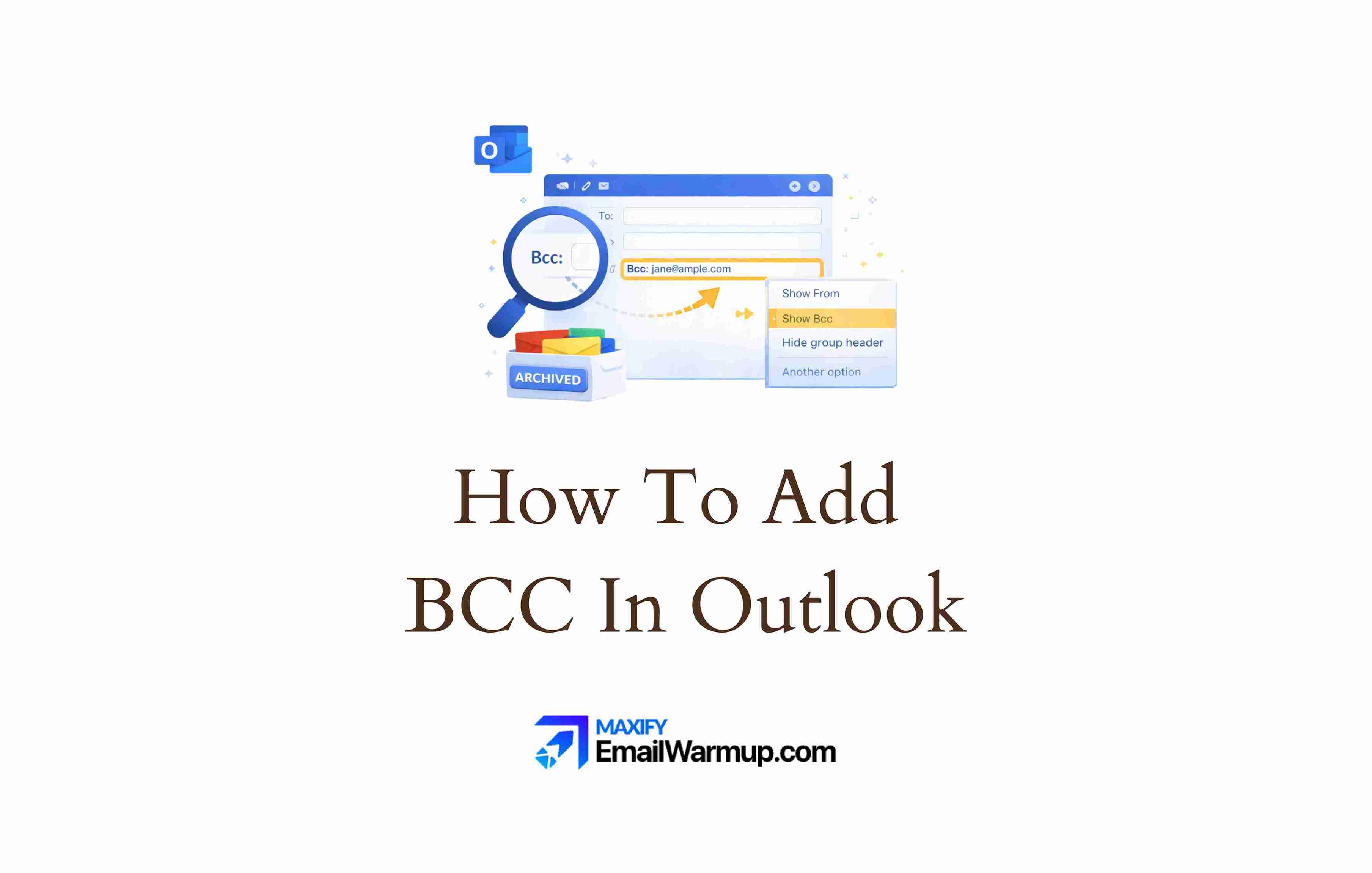
The BCC field sends hidden copies of your email. Recipients in the To and CC fields can’t see who’s in the BCC box — and BCC recipients can’t see each other either. Only you (the sender) can view those addresses later in your Sent Items folder.
Outlook hides BCC by default (keeping the compose window clean). Showing it takes two clicks, but making it permanent requires a trip to settings.
Here’s a quick overview to do that (by version):
- Classic Outlook: Options tab > BCC button
- New Outlook: Settings > Mail > Compose and reply > Always show BCC
- Outlook on the web: Same path as New Outlook
- Mobile: Tap the expand arrow next to the To field
What’s the difference between BCC and CC?
Both fields copy additional people on your message, but visibility separates them entirely.
| Aspect | CC (Carbon Copy) | BCC (Blind Carbon Copy) |
| Visibility | All recipients see CC’d addresses | No one sees BCC’d addresses |
| Reply All | CC recipients included | BCC recipients excluded |
| Inbox rules | Recipient’s To/CC-based rules work | Rules based on To/CC fail |
| Primary use | Transparency, open collaboration | Privacy, discreet inclusion |
CC works when you want everyone to know who’s looped in. BCC works when you don’t — or when you need to prevent Reply All chaos from spiraling through your entire organization.
One wrinkle worth knowing: if recipients use inbox rules to sort mail based on their address appearing in To or CC, those rules won’t trigger for BCC’d messages. The address simply isn’t visible in those fields, so the rule has nothing to match against.
When should you use BCC?
Privacy is the obvious answer, but BCC solves several specific problems.
| Scenario | Why BCC works |
| Mass announcements | Recipients don’t see each other’s emails |
| Preventing Reply All storms | BCC recipients can’t Reply All to the group |
| Discreet inclusion | Keep a manager informed without others knowing |
| CRM logging | Auto-copy to Salesforce or tracking systems |
| Protecting contacts | Prevents email harvesting by recipients |
| Job announcements | Candidates remain unaware of each other |
The Reply All prevention angle deserves emphasis. Moving a large distribution list to BCC and putting only your own address in the To field stops runaway email threads instantly.
Worth explicitly stating in the message that you’ve done this (“I’ve moved the group to BCC to reduce noise”) — otherwise recipients may wonder why Reply All isn’t working.
How do you show BCC in Classic Outlook?
Classic Outlook for Windows (versions 2016, 2019, 2021, and Microsoft 365) hides BCC by default. Two methods exist for revealing it.
Options tab method
- Open a new email message
- Click the Options tab in the ribbon
- Click BCC in the “Show Fields” section
- The BCC field appears below the CC line
- Add recipients and send
Once enabled, the BCC field typically stays visible for future messages until you toggle it off. No separate “permanent” setting needed — the toggle remembers your preference.
Address book method
- Open a new email message
- Click the To button to open the address book
- Select recipients from your contact list
- Click the BCC button at the bottom of the selection window
- Click OK
The address book approach is useful when you’re selecting multiple recipients from a list rather than typing addresses manually. The BCC option sits at the bottom of that window (easy to miss if you’re not looking for it).
How do you show BCC in New Outlook?
New Outlook separates temporary and permanent visibility into different paths.
Single email
- Open a new email message
- Click Options in the toolbar
- Select Show fields > Show BCC
- Add your BCC recipients
Permanent visibility
- Click the Settings gear icon (top right corner)
- Select Mail > Compose and reply
- Find the “Message format” section
- Check Always show BCC
- Click Save
The permanent setting syncs between New Outlook and Outlook on the web — set it once, and it applies to both. No need to configure twice.
How do you show BCC in Outlook on the web?
The web version works nearly identically to New Outlook (they share the same settings backend).
Single email
- Open a new email message
- Click the BCC link on the right side of the To field
- The BCC field appears
- Add recipients
Look for that BCC link to the right of the To field — it’s subtle and easy to overlook if you’re scanning quickly.
Permanent visibility
- Click the Settings gear icon
- Select Mail > Compose and reply
- Check Always show BCC
- Click Save
How do you show BCC in Outlook mobile?
Mobile follows a simpler pattern, though it lacks a permanent visibility option.
- Open a new email message
- Tap the arrow or expand icon next to the To field
- CC and BCC fields both appear
- Add your BCC recipients
The expand icon reveals both CC and BCC simultaneously. No permanent setting exists on mobile — you’ll need to expand the fields each time you compose. Minor inconvenience, but the functionality is there.
How do you verify BCC recipients after sending?
Only you (the sender) can see BCC addresses after a message goes out. Recipients never see them — not the people in To, not the people in CC, not even the other BCC recipients.
- Open your Sent Items folder.
- Open the specific sent message
- View the message header — BCC recipients appear alongside To and CC
- Look for a + indicator (like “+11”) if many recipients were included
- Click the expand icon to see the full list
The Sent Items folder is the only place BCC information survives. If you ever need to confirm who received a hidden copy — or if someone claims they weren’t included — that’s where to look.
What are BCC’s limitations?
BCC handles most hidden-copy scenarios well, but several limitations exist.
| Limitation | Details |
| Meeting requests | No BCC option for calendar invites |
| Spam filter risk | BCC is a favorite spammer tool — may trigger junk filters |
| Inbox rules | Recipient’s To/CC-based rules won’t fire |
| Recipient limits | BCC counts toward the provider’s per-message limit (often 100) |
| No auto-BCC | Outlook lacks a built-in “BCC every message” setting |
Meeting requests
The most common frustration is that you cannot BCC someone on a calendar invite. Microsoft currently offers no workaround — if you need someone to know about a meeting without appearing on the invite, you’ll have to forward it manually after sending. Microsoft suggests providing feedback through the app’s help menu if you want this feature added.
Spam filter risks
Because spammers love BCC (it hides their massive recipient lists), some email filters flag BCC’d messages as suspicious. If recipients report your messages landing in junk, ask them to add you to their Safe Senders list. Sending from a domain with a good reputation helps too — spam complaints damage that reputation over time.
Inbox rule issues
Many users set up automated rules to sort mail based on their address appearing in To or CC. If they’re BCC’d, those rules won’t trigger — the address isn’t visible in the fields the rule checks. Worth knowing if someone complains they didn’t see your message (it might have landed in their inbox unsorted rather than in their expected folder).
Can you automatically BCC every email?
Native Outlook doesn’t offer a simple “auto-BCC” setting for all outgoing mail. Users wanting to log every sent message (to Salesforce or similar CRM systems) need workarounds.
| Method | Requirements |
| VBA script | Desktop Outlook, Developer tab enabled |
| Exchange Admin rules | IT access to the Exchange server |
| Third-party add-ins | Installed Outlook add-in |
VBA scripting works but requires enabling the Developer tab and writing Application_ItemSend code — not exactly user-friendly for most people.
Corporate environments typically ask IT to set up Exchange transport rules instead (server-side automation that doesn’t depend on individual client configuration).
The web app and New Outlook lack this capability natively. Rules in those versions focus on incoming mail only, not outgoing.
Frequently asked questions
Here are some commonly asked questions about this topic:
Not directly — their copy shows only the To and CC fields. Their address doesn’t appear anywhere visible. However, sophisticated recipients might notice they received a message where their address isn’t in any visible field, which signals they were BCC’d. No way to hide this entirely.
Yes. Tap the arrow or expand icon next to the To field to reveal CC and BCC options. No permanent visibility setting exists on mobile — you’ll need to expand the fields each time you compose a new message.
BCC is a favorite spammer technique (hides massive recipient lists), so aggressive filters sometimes flag these messages. Having recipients whitelist your address and sending from a domain with good email deliverability both help reduce the risk.



