



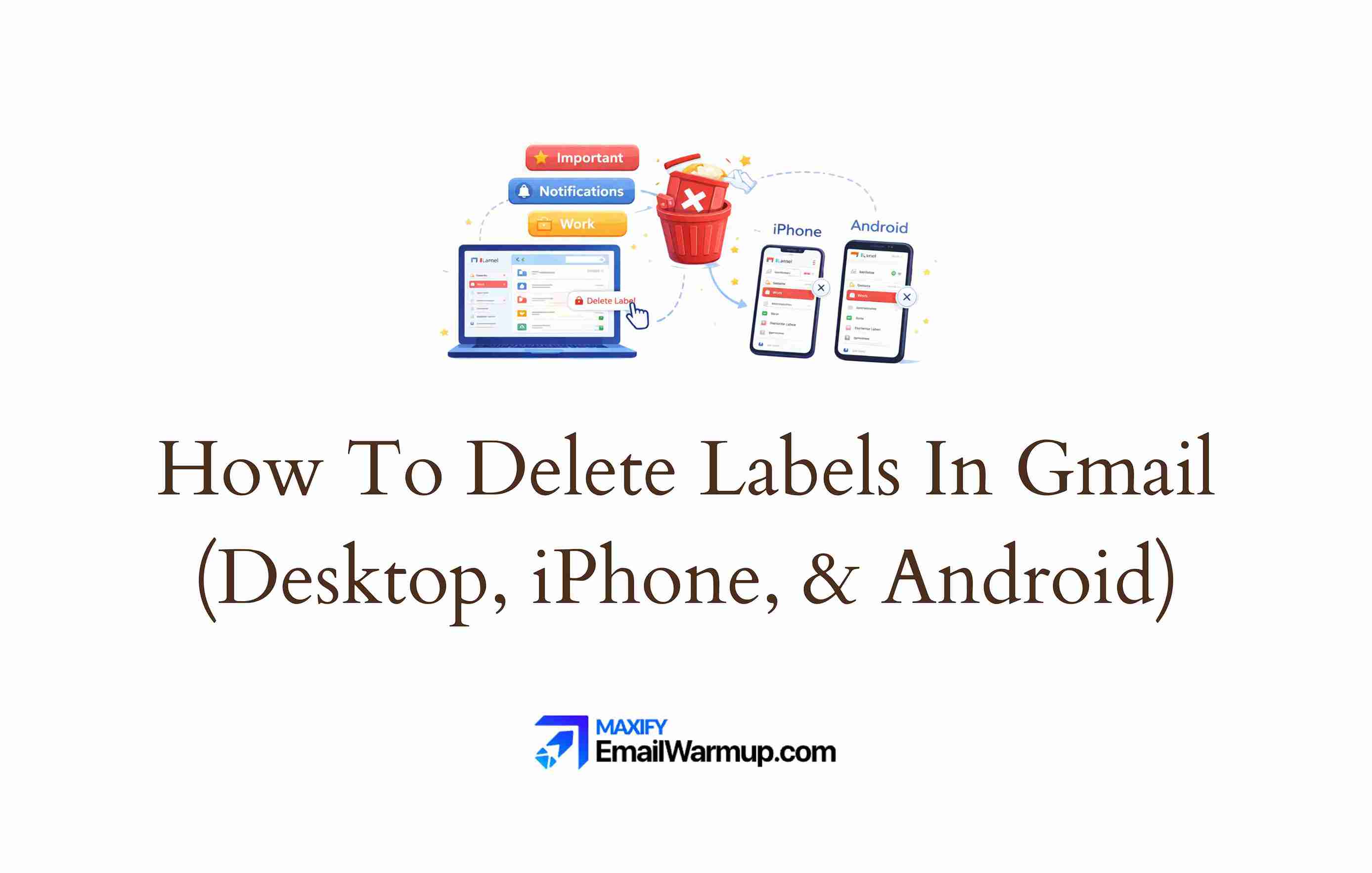
To delete a label in Gmail, hover over the label in your sidebar, click the three-dot menu (⋮), and select “Remove label.” This removes the tag from your account but keeps all your emails safe.
Gmail labels work like tags, not folders. A single email can have multiple labels at once. When you delete a label, you remove only the organizational tag. Your emails stay exactly where they are.
If your sidebar has old project names or categories you no longer need, cleaning them up takes less than a minute. The steps vary slightly by device, but the process stays simple.
In this guide, you’ll learn:
- Two ways to delete labels on desktop (sidebar and Settings)
- How to delete labels on Android and iPhone (both supported)
- Which system labels you can hide but never delete
- Why some labels keep coming back
How to delete Gmail labels on desktop
Gmail on desktop gives you two ways to delete labels: the sidebar method and the Settings method.
The sidebar method works best for quick, one-off removals. The Settings method suits larger cleanup sessions when you want to review all your labels at once.
Both methods keep your emails completely safe. Deleting a label removes the tag only — your messages stay in your mailbox and remain searchable.
Sidebar method
This is the fastest way to delete a single label in Gmail:
- Find the label in the left sidebar
- Hover over the label name
- Click the three-dot menu (⋮) that appears
- Select “Remove label”
- Click “Delete” to confirm
If you don’t see the label, click “More” at the bottom of the sidebar. This reveals hidden labels in your label list.
Settings method
Use this method when you need to delete multiple labels or review your entire label list:
- Click the gear icon (⚙️) in the top right
- Select “See all settings”
- Open the “Labels” tab
- Find the label you want to remove
- Click “Remove” in the Actions column
- Confirm when Gmail prompts you
The Labels tab also shows Show/Hide toggles. These let you hide labels from your sidebar without deleting them permanently.
Press Ctrl+F (or Cmd+F on Mac) to search for specific label names on this page.
What happens when you delete a Gmail label?
Deleting a Gmail label removes only the tag — not your emails. Your messages stay safe in your mailbox.
What stays after deletion
- All emails that had the label
- Messages in your Inbox
- Other labels on the same emails
- Full search access to those messages
What goes away
- The label itself
- The sidebar entry
- Label-to-message connections
- Any filter references to that label
Your messages stay in All Mail and remain fully searchable. If an email had multiple labels, it keeps the other labels after you delete one.
Gmail has no “undo” button for label deletion. You can recreate a label with the same name later, but Gmail treats it as a brand new label. Your old emails won’t reconnect automatically.
How to delete Gmail labels on mobile
Both Android and iPhone let you delete labels directly in the Gmail app. The steps differ slightly between platforms.
Android
The Gmail app on Android lets you delete labels through Settings:
- Open the Gmail app
- Tap the menu icon (☰) in the top left
- Tap Settings
- Select your Google account
- Tap Manage labels
- Choose the label you want to remove
- Tap Delete
Your emails stay safe — only the label tag gets removed.
iPhone and iPad
The Gmail iOS app also supports direct label deletion:
- Open the Gmail app
- Tap the menu icon (☰) in the top left
- Tap Settings
- Tap Inbox customizations
- Tap Labels
- Select the label you want to delete
- Tap Delete
The navigation path differs from Android (Inbox customizations → Labels vs. Manage labels), but both platforms now support full label management directly in the app.
Why do some Gmail labels keep coming back?
Sometimes a deleted label comes back. This usually happens because something recreates it automatically. Here’s where to look:
Email filters
Gmail filters can recreate deleted labels instantly. When a matching email arrives, the filter applies the label again — even if you just deleted it.
To check your filters:
- Go to Settings → “Filters and Blocked Addresses”
- Look for filters with “Apply the label” in the action
- Edit or delete any filter that references your problem label
Connected apps and services
Third-party apps can sync labels back to Gmail:
- IMAP email clients (Outlook, Apple Mail) may recreate folder structures
- CRM tools and automation platforms often create labels automatically
- Google Workspace integrations might add labels for workflows
Check your connected apps at Google Account → Security → Third-party access. Try disconnecting email clients temporarily to test if they’re the source.
Browser extensions
Some Chrome extensions modify Gmail’s behavior. Test in incognito mode (which disables extensions) to see if the label stays deleted. If it does, an extension is likely causing the issue.
Which Gmail labels can you hide but not delete?
System labels are built into Gmail. You cannot delete them, but you can hide most of them from your sidebar.
System labels you cannot delete
- Inbox
- Sent
- Drafts
- Spam
- Trash
- Important
- Starred
- All Mail
How to hide system labels
- Go to Settings → “Labels” tab
- Find the system label
- Change “Show” to “Hide”
The “Show if unread” option displays a label only when it has unread messages. This keeps your sidebar clean while still alerting you to new mail.
Categories vs. Labels
Primary, Social, Promotions, Updates, and Forums are inbox category tabs — not labels. You cannot delete them as labels. To disable categories, go to Settings → Inbox → “Categories” and uncheck the ones you don’t want.
How to delete multiple Gmail labels at once
Gmail does not offer bulk label deletion. You must remove each label one at a time through the Settings page.
For manual cleanup:
- Work through the Labels tab in Settings systematically
- Start with obviously unused or outdated labels
- Take 15-20 minute focused sessions to avoid decision fatigue
For large-scale cleanup
Third-party tools like Clean Email or add-ons from the Google Workspace Marketplace can batch-delete labels. These tools require account access — review permissions carefully before authorizing.
Do Gmail labels show where recipients see your emails?
No. Gmail labels organize your own mailbox only. They tell you nothing about where your sent emails land in someone else’s inbox.
Your labels might be perfectly organized, but your important emails could still hit spam folders. The two systems are completely separate.
Check the actual delivery status
The Email Spam Checker Chrome extension shows where your sent emails actually land:
- Inbox — delivered to the recipient’s primary inbox
- Promotions — routed to their Promotions tab
- Spam — flagged and sent to spam
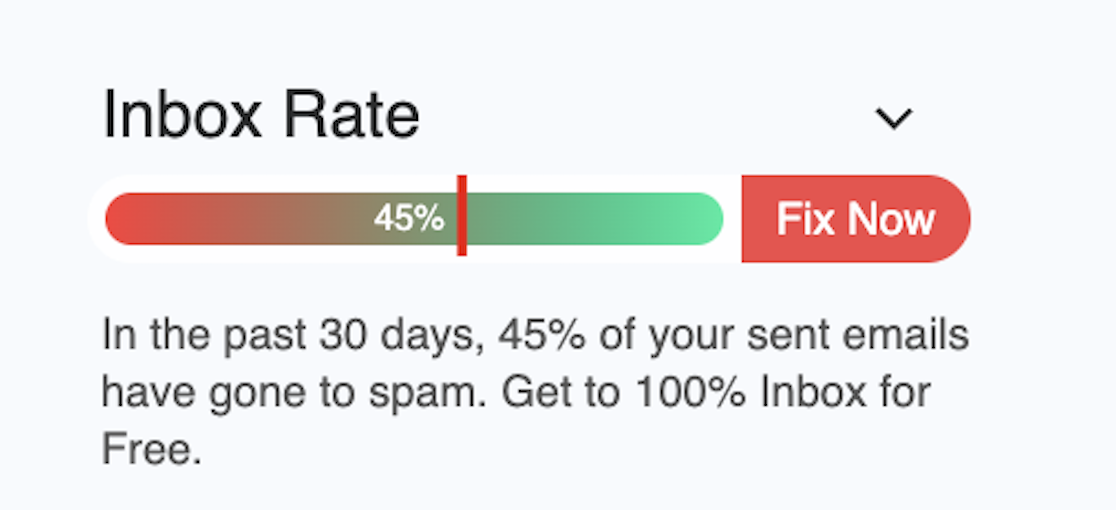
Free Email Spam Checker Extension
See exactly where your emails land (inbox, promotions, or spam) without leaving Gmail or Outlook. Get a real-time deliverability score in your compose section, and clear placement labels in your Sent folder for emails you’ve already sent. Free of cost!
Real-time deliverability score
Percentage score appears beside your compose window before you hit send.
Inbox vs. spam visibility
Instant view of what percent reached inbox vs. spam across providers.
Sent-folder placement labels
Every sent email is tagged as inbox, promotions, or spam so you actually know where your emails landed.
Unlimited & free
While other tools charge $25–$85/mo, our extension is free forever.
Instead of guessing, you see exactly where each email went. The extension also predicts draft deliverability before you send them.
Also, this way, the default labels in Gmail are removed and replaced with labels that show where the emails went (in your recipient’s inbox), instead of where they are (in your inbox).
Tips for organizing labels after cleanup
Once you’ve deleted unnecessary labels, a few habits prevent future clutter:
Naming tips
- Keep names short (they truncate in the sidebar)
- Avoid dates in label names (they become outdated quickly)
- Use clear nouns: Clients, Projects, Invoices
Color tips
- Limit yourself to 3-5 colors
- Assign colors only to top-level categories
- Pick one standout color for urgent labels
Structure tips
- Nest labels only two levels deep (Projects/Alpha, Projects/Beta)
- Don’t create near-duplicate names
- Review your labels quarterly and merge similar ones
Frequently Asked Questions
Here are some frequently asked questions about deleting labels from Gmail:
No, deleting a label removes only the tag. Your emails stay in your mailbox, remain searchable, and keep any other labels. Messages typically appear under All Mail if they’re no longer in your Inbox.
Open the Gmail app, tap the menu icon (☰), go to Settings, select your account, tap “Manage labels,” choose the label, and tap Delete.
Yes. Open the Gmail app, tap the menu icon (☰), go to Settings → Inbox customizations → Labels, select the label, and tap Delete.
Filters, connected apps, or browser extensions often recreate labels automatically. Check Settings → Filters for rules applying that label. Review third-party app access in your Google Account. Test in incognito mode to rule out extensions.
No. System labels (Inbox, Sent, Drafts, Spam, Trash, Important, Starred) cannot be deleted. You can hide them in Settings → Labels to declutter your sidebar.
Gmail doesn’t support bulk deletion. Remove labels individually through Settings → Labels. Third-party tools like Clean Email can batch-delete if you need to remove many labels quickly.
Deleting a label removes it from your Gmail account entirely. Removing a label from specific emails keeps the label but detaches it from those messages — the label still exists for other emails.



