



You changed a DNS record. Now your website, email, or SSL certificate is not working — and every guide says “wait 24 to 48 hours.” That advice is usually wrong.
Most DNS problems that look like propagation delays are actually setup errors, stale caches, or misconfigured records that waiting will never fix.
DNS propagation is the time it takes for DNS changes to become visible across different networks and resolvers after a record update. In practice, the delay is mostly caused by cached DNS answers expiring — not records “spreading” across the internet.
To explore further, let’s dive in and discover:
- What DNS propagation actually is (and why the term is misleading)
- How DNS propagation affects email authentication & deliverability
- A troubleshooting decision tree for when DNS is not updating
- What causes propagation delays, and what can you control
- How to check whether propagation is complete or stuck
- How long do different DNS record types take to update
- How to speed up DNS changes before a migration
- A before, during, and after DNS migration checklist
What is DNS propagation?
Most guides describe DNS propagation as changes “spreading across the internet.”
The mental model is easy to picture — but technically incomplete. DNS records are not pushed outward from a central server to every corner of the globe. What actually happens is simpler and more useful to understand.
When you update a DNS record, your DNS provider updates the authoritative nameserver (the source of truth for your domain). From that point, the change is live on the authoritative server.
The delay happens because recursive resolvers — the DNS servers your ISP, Google, Cloudflare, or your office router use — may still have the old answer cached.
Those resolvers keep old answers until a timer called TTL (Time to Live) expires. Once the cached copy expires, the resolver asks the authoritative nameserver again and gets the new record. Google Cloud describes this as two separate steps:
- The DNS provider pushes the change to its authoritative servers
- Then resolvers pick up the new answer after their cached copy expires
The word “propagation” implies a push. The reality is a pull. Resolvers refresh on their own schedule, and until they do, some users see the new record while others still see the old one.
How long does DNS propagation take?
The honest answer is…that it depends on the record type, the TTL that was set before the change, and the behavior of individual resolvers.
The commonly cited “24 to 48 hours” window is a planning buffer, not a technical rule. Many changes become visible within minutes.
A nameserver change feels slower because it involves more layers than a simple A record edit.
The registrar updates its records, the TLD nameserver (like .com or .org) reflects the delegation change, and then recursive resolvers across the internet need to expire their cached NS entries.
A regular A record change, by contrast, only needs the old TTL to expire on recursive resolvers.
AWS Route 53 documentation recommends TTL values between 60 and 172,800 seconds, and specifically notes that shorter TTLs make resolvers notice updates faster but increase query volume and cost.
For records that rarely change (like MX and NS), TTLs of 3,600 to 86,400 seconds are common.
What affects DNS propagation time?
Several factors control how fast or slow a DNS change appears across the internet. Some you can control, others you cannot.
TTL settings
TTL is the single biggest factor. RFC 1035 defines it as the time interval, in seconds, that a resource record may be cached before it should be discarded.
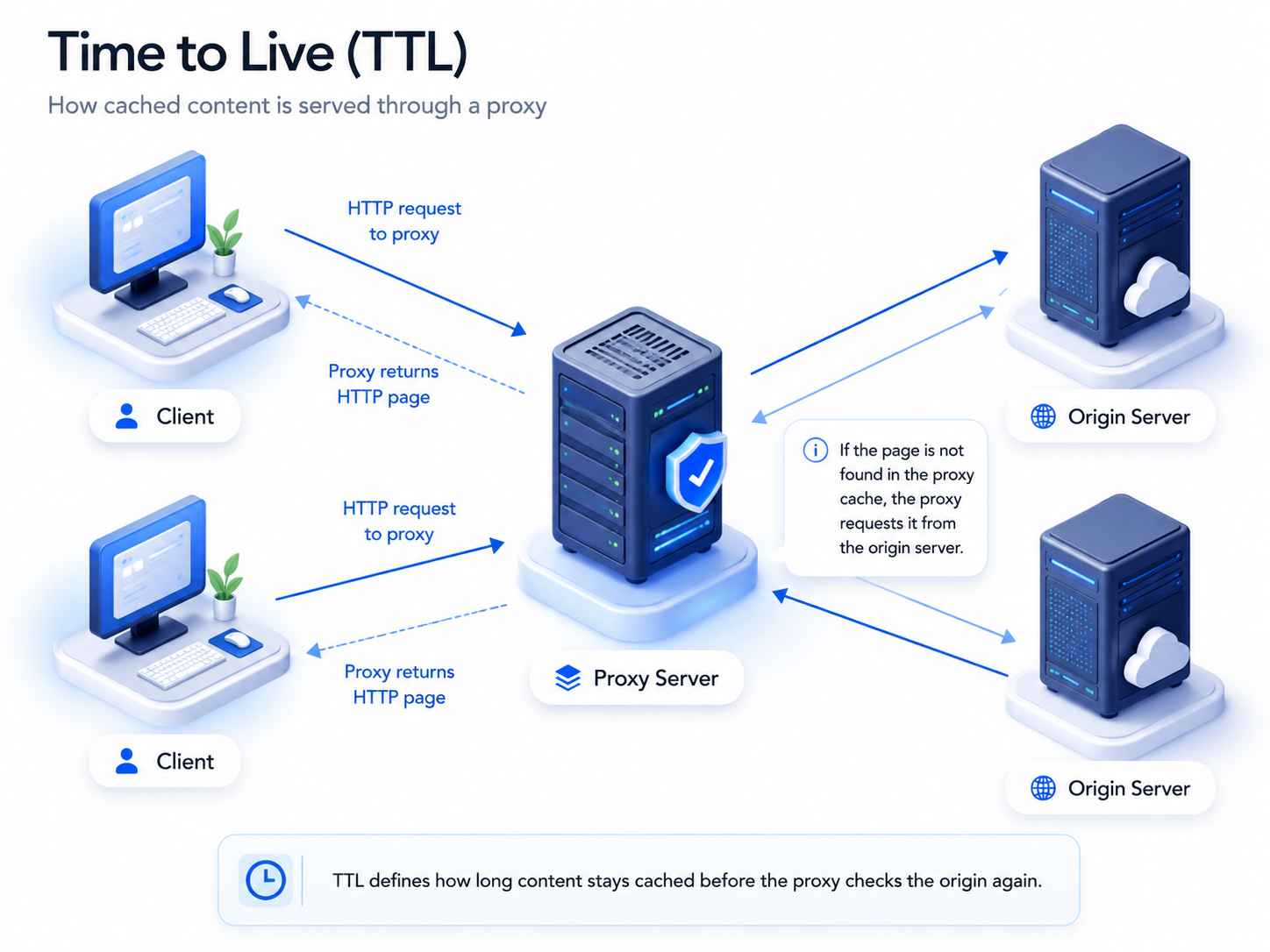
A TTL of 86,400 seconds means resolvers can hold the old answer for 24 hours. A TTL of 300 seconds means 5 minutes.
The catch is that if you lower TTL after making the change, it may not help. Resolvers that already cached the old record still honor the previous TTL. Lowering TTL works as a preparation step, not a fix.
Resolver behavior
Different recursive resolvers handle caching differently, and this is where predictability breaks down:
ISP resolvers often cache aggressively and may not strictly honor TTL values.
Google Cloud notes that some resolvers ignore TTL values or apply their own caching durations
Cloudflare’s proxied DNS records use an automatic TTL of 300 seconds that cannot be edited
Your browser, operating system, and router each maintain their own DNS cache layers
Negative caching
An often-overlooked delay: if someone (or a service) queries a DNS record before it exists, the resolver may cache the “not found” answer.
RFC 2308 defines this as negative caching — storing knowledge that a record does not exist. Google Cloud reports that many popular resolvers cache negative responses for up to 15 minutes.
A 2025 research paper by Deccio et al. tested negative caching behavior across public DNS providers and found that roughly half of deployed resolvers appear to use aggressive negative caching for NSEC records.
Google and Quad9 supported it, while Cloudflare showed no apparent support.
In practice, this means that if you set up a subdomain, try to visit it before adding the DNS record, and then add the record — your resolver might still tell you the record does not exist for several minutes.
DNSSEC issues
DNSSEC validation failures look identical to propagation problems from the user’s perspective.
If your DS record at the registrar does not match the DNSKEY at your DNS provider (common after a nameserver migration), validating resolvers return SERVFAIL instead of the DNS answer.
Some resolvers validate DNSSEC strictly while others do not, which creates a pattern where DNS “works for some people but not others” — a pattern easily mistaken for slow propagation.
How do you check DNS propagation?
Checking propagation correctly means querying multiple layers, not just one tool.
Global checkers
Tools like DNSChecker, whatsmydns, and MXToolbox sample DNS results from resolvers in different geographic locations.
They answer “what do resolvers around the world currently see?” — but they do not tell you whether the authoritative DNS is correct.
Authoritative lookup
Always check the authoritative nameserver first. If the source of truth is wrong, propagation is irrelevant.
dig @ns1.yourprovider.com example.com A
For Windows:
nslookup example.com ns1.yourprovider.com
Public resolver comparison
Comparing results across public DNS resolvers helps isolate whether the issue is global or local.
dig @8.8.8.8 example.com A # Google Public DNS
dig @1.1.1.1 example.com A # Cloudflare DNS
dig @9.9.9.9 example.com A # Quad9
If all three public resolvers show the new record but your computer does not, the issue is local (browser cache, OS cache, router cache, or VPN DNS).
Email DNS checks
Email authentication records need their own checks because they use specific TXT record formats and selectors.
dig example.com MX
dig example.com TXT
dig selector._domainkey.example.com TXT
dig _dmarc.example.com TXT
You can also use EmailWarmup.com’s free SPF lookup, DKIM lookup, and DMARC lookup tools to validate authentication records without touching a command line.
How do you speed up DNS propagation before a change?
You cannot force every resolver on the internet to refresh simultaneously. But you can reduce the window significantly with preparation.
1. Lower TTL 24-48 hours before the migration
Set it to 300 seconds (5 minutes). Wait for old caches to expire at the previous TTL, then make the DNS change. Raise TTL again after the change stabilizes.
2. Keep the old server running during migration
Users whose resolvers still cache the old IP will hit the old server. If the old server is already offline, those users see errors.
3. Make changes during low-traffic hours
Lower user impact, even though it does not technically speed up resolver cache expiry.
4. Use a reliable authoritative DNS provider
Providers like Cloudflare, Route 53, or Google Cloud DNS update their authoritative networks within seconds. External resolver caches still need to expire, but the authoritative side is covered.
A common mistake is repeatedly editing DNS records during the wait.
Every edit can reset TTL timers on some resolvers and make diagnosis harder. Make the change once, confirm it on the authoritative nameserver, and then monitor.
What should you do when DNS propagation is not working?
Most DNS problems blamed on propagation are actually configuration errors. A structured diagnostic approach saves hours of unnecessary waiting.
Flushing local cache
If the issue is isolated to your device, clearing local DNS cache is the right step.
- Windows: ipconfig /flushdns
- macOS: dscacheutil -flushcache followed by sudo killall -HUP mDNSResponder
- Linux (systemd): systemd-resolve –flush-caches
- Google Public DNS: Use the official flush tool to clear cached records from Google’s resolvers
Also clear browser DNS cache (Chrome stores its own at chrome://net-internals/#dns) and restart your router if other devices on the same network are affected.
Common conflicting records
Record conflicts are a frequent and invisible cause of DNS failures that get blamed on propagation.
- A record and CNAME on the same hostname (invalid under DNS standards)
- Two TXT records containing separate SPF policies (causes SPF failures)
- Root domain and www pointing to different servers or providers
- Old verification TXT records from deactivated services
- Duplicate DKIM selectors pointing to different keys
How does DNS propagation affect email?
Email DNS changes carry higher stakes than website changes because authentication failures do not just create downtime — they damage sender reputation and cause messages to land in spam.
A website migration with stale DNS means some users see an old page.
An email migration with stale DNS means messages fail authentication silently, and receiving servers may start rejecting your mail.
MX records
MX record propagation controls where incoming email routes.
During a migration between email providers, both the old and new mail servers should be active until MX propagation completes — otherwise messages sent during the transition window bounce.
SPF records
SPF records authorize which servers can send email for your domain.
A common mistake during migrations is adding a second SPF TXT record instead of updating the existing one. DNS allows multiple TXT records on a domain, but RFC 7208 requires exactly one SPF record.
Two SPF records cause SPF failures even after propagation completes. Use EmailWarmup.com’s free SPF generator to create a clean, consolidated record.
If your SPF record has too many DNS lookups (the limit is 10), consider SPF flattening to reduce lookup count without removing authorized senders.
DKIM records
DKIM records use a selector-based CNAME or TXT record for signature verification.
A single syntax error makes the record unparsable, and receiving servers treat messages as unsigned.
After adding or changing a DKIM record, verify it with the DKIM lookup tool before sending any campaigns.
For cloud-hosted email, our guide on configuring DKIM for cloud providers covers the provider-specific steps.
DMARC records
DMARC ties SPF and DKIM together with a policy that tells receiving servers how to handle authentication failures.
If your DMARC record references a reporting address that has not been set up (or if you skip reading DMARC reports after deployment), you lose visibility into authentication problems that propagation may still be causing.
After any DNS change that touches email authentication, run an email deliverability test to verify that SPF, DKIM, and DMARC all pass correctly.
DNS propagation checklist
A structured checklist prevents the two most common DNS migration mistakes: changing records in the wrong place, and removing old infrastructure too early.
Does DNS propagation affect SEO?
DNS propagation itself is not a ranking factor.
But downtime, server errors, inaccessible pages, or incorrect redirects during a migration can affect crawling and indexing.
If Googlebot hits the old server and gets a 500 error (or if a redirect loop forms because www and the root domain point to different systems), those signals can temporarily hurt search visibility.
The fix is operational…keep both old and new environments active during the transition, set up proper redirects before switching DNS, and monitor crawl errors in Google Search Console after the change.
Your email DNS records changed — now what?
DNS propagation delays are frustrating enough when a website goes down.
But when email authentication records are the ones caught in transit, the damage is worse and less visible. Messages fail SPF, DKIM, or DMARC checks silently, domain reputation takes a hit, and inbox placement drops — all without a single error message reaching the sender.

EmailWarmup.com helps teams catch authentication gaps, diagnose deliverability issues, and protect sender reputation across their entire email infrastructure.
- Free SPF, DKIM, and DMARC lookup tools to verify records after any DNS change
- Free email deliverability test across Gmail, Outlook, Yahoo, and 50+ mailbox providers
- Expert deliverability consultation — free, with no subscription required
Talk to a deliverability specialist before your next DNS migration causes silent email failures.
Frequently asked questions
Here are some commonly asked questions about DNS propagation:
DNS propagation is the time it takes for DNS changes to become visible across different networks. Most of the delay comes from recursive resolvers holding cached answers until their TTL expires — not from records actively “spreading.”
You cannot force every resolver on the internet to refresh. You can flush your local cache, switch to a public resolver like Google DNS (8.8.8.8) or Cloudflare DNS (1.1.1.1), and lower TTL before the change to reduce the window. Google offers a public cache flush tool.
Your device, browser, router, or ISP resolver likely still has the old DNS answer cached. Try flushing DNS, clearing browser cache, using a different network (like mobile data), or switching your resolver to 1.1.1.1 or 8.8.8.8.
Email issues after DNS changes usually stem from incorrect MX records, duplicate SPF records, missing DKIM selectors, or incomplete DMARC configuration — not propagation timing. Check each record individually with an email deliverability test.
Switching to Google Public DNS changes which resolver your device uses. You may see fresher DNS results than your ISP resolver provides. But it does not update DNS records globally — it only changes your local lookup path.
Cloudflare’s proxied records use a fixed TTL of 300 seconds, so changes to proxied records typically appear within minutes. DNS-only (gray cloud) records follow the TTL you set. Nameserver activation when first adding a domain to Cloudflare can still take hours because that involves registrar and TLD delegation.
Negative caching occurs when a resolver stores a “record does not exist” response. If you query a subdomain before creating its DNS record, some resolvers cache the failed lookup for up to 15 minutes. The record may exist on the authoritative server but still show as missing on cached resolvers until the negative TTL expires.
Yes. Lowering TTL 24 to 48 hours before a planned change is the single most effective way to reduce propagation delays. Once existing caches expire at the old TTL, new lookups use the shorter TTL, and subsequent changes become visible much faster.



